How to Add Your Premium.Chat Link to Your Facebook Profile
Facebook has over three billion monthly active users. If you are a creator, coach, consultant, or anyone looking to monetize your time and expertise, your Premium.Chat link belongs on your Facebook profile.
Facebook has over three billion monthly active users. If you are a creator, coach, consultant, or anyone looking to monetize your time and expertise, your Premium.Chat link belongs on your Facebook profile. This guide walks you through every step of adding and promoting your Premium.Chat link on Facebook so you can start earning from your audience.
Step 1: Get Your Premium.Chat Profile URL
Before you can share anything on Facebook, you need your Premium.Chat profile link. Log in to your Premium.Chat account and navigate to your profile settings. Your public URL is listed there in the format premium.chat/[yourname]. Copy that URL and keep it handy as you work through the steps below.

Step 2: Add Your Link to Your Facebook About Section
The About section of your Facebook profile or Page is the first place visitors look when they want more information about you. Adding your Premium.Chat link here puts it in front of every new visitor automatically.
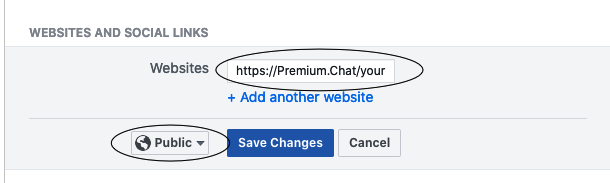
To add your link on a personal Facebook profile, go to your profile, click Edit Profile, scroll to the Contact and basic info section, and add your Premium.Chat URL to the Website field. On a Facebook Page, click Edit Page Info and add your link to the Website field under Contact Information.

Step 3: Update Your Facebook Bio Text
On a Facebook Page, your bio text appears prominently at the top of your Page. Use this space to describe what you offer and invite people to book a session. Keep it concise and include a direct call to action. For example: “Get personalized advice and one on one conversations. Book a session with me at premium.chat/[yourname].”
On a personal Facebook profile, your intro section appears right under your profile photo. Add a short line about what you offer and your Premium.Chat link so it is immediately visible to profile visitors.

Step 4: Pin a Post About Premium.Chat to Your Profile
Create a dedicated post introducing your Premium.Chat profile. Explain what you offer, who it is for, and how people can get started. Include your Premium.Chat URL in the post text. Then pin that post to the top of your timeline so it stays visible to every visitor, no matter when they arrive.
To pin a post, click the three dots in the top right corner of the post and select Pin to Profile or Pin to Top of Page. Your pinned post appears at the very top of your content and acts as a permanent landing spot for anyone discovering you for the first time.
Step 5: Promote Your Link in Facebook Stories
Facebook Stories disappear after 24 hours, which makes them perfect for time-sensitive announcements. Use Stories to let your audience know when you are available for sessions, when you are going into Live Mode on Premium.Chat, or when you have opened new time slots.
Add your Premium.Chat URL as a text overlay on your Story image or use the link sticker to make your URL directly tappable. Stories show at the top of the Facebook feed, so they get high visibility even if your regular posts do not reach everyone.
Step 6: Post Consistently to Keep Your Link Visible
Adding your link once is not enough. The Facebook algorithm rewards consistent activity, and your audience needs multiple touchpoints before they take action. Plan to post about your Premium.Chat availability two to three times per week. Vary the format: text posts, photos, short videos, and Stories all reach different segments of your audience.
Strong content ideas for ongoing posts include: sharing a tip or insight from your area of expertise, answering a common question publicly and inviting a deeper conversation, announcing that you are available now, or sharing a result from a recent session (with permission). Each post should end with a direct invitation to connect through your Premium.Chat link.

Step 7: Use Facebook Live to Drive Immediate Sessions
Facebook Live puts you in front of your audience in real time and creates a direct path to session requests. During a live broadcast, mention your Premium.Chat link verbally and pin it as a comment so viewers can find it without interrupting the stream. Announce at the start and end of your broadcast that you are available for one on one sessions.
The combination of a Facebook Live broadcast and your Premium.Chat Live Mode running simultaneously is powerful. Your Facebook audience sees you in real time. If they click your link and find you in Live Mode on Premium.Chat, the immediacy drives session starts at a much higher rate than cold profile visits.
Step 8: Promote in Facebook Groups
Facebook Groups centered around your niche are a direct channel to people who are already interested in your area of expertise. Participate genuinely, answer questions, and add value before promoting your Premium.Chat profile. Many groups have specific days or threads for self-promotion, which gives you a structured opportunity to share your link with a receptive audience.
You can also create your own Facebook Group around your niche or topic, which builds a community you own. Your Premium.Chat link can live in the group description and pinned posts, visible to every member and every visitor considering joining.
Start Earning From Your Facebook Audience
Your Facebook following is already built. Premium.Chat gives you the infrastructure to convert that attention into income. Every post you share, every Story you put up, and every Facebook Live you run is an opportunity to drive traffic to your Premium.Chat profile and turn followers into paying clients.
If you have not set up your Premium.Chat profile yet, create your account here and get your link live in minutes. Then come back and work through every step in this guide to make your Facebook profile a steady source of sessions.
Frequently Asked Questions
Can I add my Premium.Chat link to Facebook Stories?
Yes. You can include your Premium.Chat URL as text in a Facebook Story and use the link sticker feature to make it tappable. Stories disappear after 24 hours, so they work well for announcing a live session or a limited availability window.
Can I add my Premium.Chat link to my Facebook profile?
Yes. You can add your Premium.Chat profile link to the Website field in your Facebook About section, which puts a clickable link on your public profile. This is the most visible place for your link and is visible to anyone who visits your page.
Can I promote my Premium.Chat in Facebook Groups?
Yes, many creators share their Premium.Chat profile in niche Facebook Groups related to their expertise. Always follow the group rules about self-promotion and focus on providing value first. Groups can be a strong source of targeted traffic when used thoughtfully.
Can I use Facebook Live to drive traffic to my Premium.Chat?
Absolutely. Facebook Live gives you real-time visibility with your followers and can drive immediate session requests. Mention your Premium.Chat link verbally during the broadcast and pin it as a comment so viewers can find it easily without pausing the stream.
Does Premium.Chat charge me to use it on Facebook?
No. Adding your Premium.Chat link to Facebook is free. Premium.Chat charges a platform fee on completed sessions and content sales, but there is no charge for creating your profile, sharing your link, or promoting yourself on social media.
How do I find my Premium.Chat profile URL?
Log in to your Premium.Chat account and go to your profile settings. Your public profile URL is displayed there and follows the format premium.chat/[yourname]. Copy that link and use it wherever you promote yourself on Facebook.
How do I pin a post about Premium.Chat on my Facebook profile?
On your Facebook profile or Page, create a post with your Premium.Chat link, then click the three dots on that post and select Pin to Profile or Pin to Top of Page. A pinned post sits at the top of your timeline so every new visitor sees it first.
How long does it take to start getting sessions after adding my link to Facebook?
Results vary by audience size, niche, and how actively you promote. Creators with an engaged Facebook following often see their first sessions within a few days of announcing their Premium.Chat profile. Consistency with posting and clear calls to action are the biggest factors in how quickly sessions come in.
How often should I post about my Premium.Chat on Facebook?
Post about your Premium.Chat availability two to three times per week at minimum. Mix up your content: announce when you go live, share what topics you cover, highlight session types you offer, and remind followers about your link. Consistency keeps your link visible without feeling spammy.
Should I use a personal Facebook profile or a Facebook Page?
A Facebook Page is generally better for promoting paid services because it has more promotional tools, analytics, and no friend request barrier. That said, many creators add their Premium.Chat link to both their personal profile and their Page to reach all audiences.
What kind of Facebook posts work best for getting Premium.Chat sessions?
Posts that perform best are ones that tease your expertise without giving everything away. Share a short insight, a common question you get, or a behind-the-scenes moment, then invite people to book a session for the full conversation. Direct calls to action with a linked post drive more clicks than vague mentions.
Where exactly do I put my Premium.Chat link on Facebook?
The best places are your About section website field, the bio text on your Facebook Page, pinned posts, and the cover photo caption. Using multiple placements increases the chance that visitors find your link no matter how they land on your profile.